Technical workflow guide
How Browser-Based AI Meeting Assistants Capture Audio
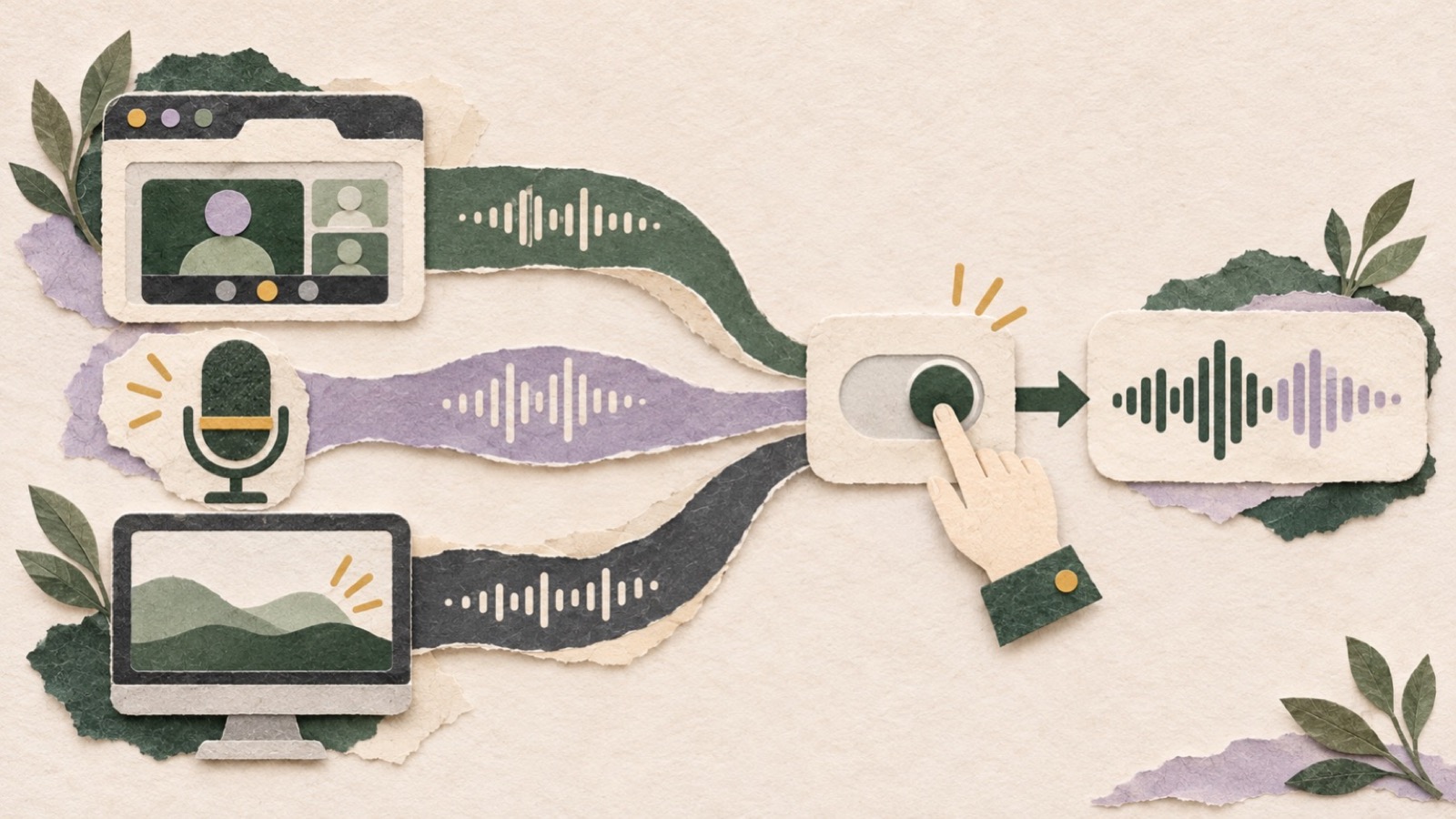
A browser assistant usually receives audio through a user-granted tab or screen share, a microphone stream, or both. The browser controls what can be shared; the service may then stream that media to a backend for transcription and AI processing. “Browser-based” therefore describes the entry point, not guaranteed local processing.
SleekMeeting publishes this technical guide and is one of the products discussed. Product facts were checked against official browser documentation on November 10, 2026.
Key takeaways
- Tab sharing is usually the clearest way to capture a browser meeting's remote audio.
- Microphone capture and system/tab audio are separate permissions and can fail independently.
- Headphones reduce echo but do not guarantee that the selected share source includes remote audio.
- Stopping sharing should terminate the media path; verify the session state rather than assuming.
The capture path in plain language
The meeting runs in one browser tab. The assistant runs in another. When the user chooses “share tab audio” or “share screen audio,” the browser exposes a media stream to the assistant. A microphone permission can add the user's voice. The product can send those streams to its transcription and AI services, then return text, notes or answers to the browser UI.
This is different from a cloud bot, which joins the meeting as a participant, and different from a desktop recorder, which can often access system audio across applications. It is also different from local-only processing: the browser can be a front door to a remote backend.
Tab, screen and microphone audio
Tab audio
Tab audio is often the cleanest source for Google Meet, Teams Web or Zoom Web. It captures what that tab plays, subject to browser and operating-system support. Select the meeting tab—not the assistant tab—and include audio when the chooser offers it.
Screen or system audio
Screen sharing may expose broader audio, but the option and behavior vary by browser, operating system and managed policy. It can also capture more than intended. Use the narrowest source that satisfies the meeting and review what is selected.
Microphone audio
Microphone capture supplies your local voice and can help when remote audio is unavailable. It can introduce room noise or echo. Headphones help, but the assistant still needs permission and a working input device.
Why capture fails
- Wrong tab: the assistant hears its own page instead of the meeting.
- Audio not checked: the screen chooser shares pixels but not remote sound.
- Native client: the meeting is in a desktop app with no browser tab audio to share.
- Managed permissions: the browser or OS blocks display capture, microphone or pop-ups.
- Headphone routing: audio goes to a device that the selected capture source cannot expose.
- Stopped sharing: the stream ends, but the product UI needs a moment to reflect it.
Testing SleekMeeting's browser route
- Use the exact desktop browser and OS your team intends to support.
- Join a low-risk meeting in a web tab and wear headphones.
- Start SleekAssist or SleekNote, then share the meeting tab or screen with audio.
- Speak locally and play remote audio; check both appear in the live transcript.
- Stop sharing, end the session, and confirm capture no longer advances.
SleekMeeting's Assist and Note modes are mutually exclusive. Assist offers live contextual answers, optional manual screenshot analysis and one context file up to 10 MB. Note creates structured notes and an editable email draft; it does not send email.
Frequently asked questions
Does browser capture record video?
The workflow is centered on audio; do not assume a video recording is created.
Can a browser hear a native meeting app?
Not through tab audio. Use a tested web client or an approved desktop capture route.
Is browser capture private by default?
No. Review the vendor's backend, retention, sharing and deletion behavior.
Does no bot remove consent?
No. Consent and workplace rules still apply.
Run the audio test before the important call
Check remote audio, microphone, headphones and stopped-sharing behavior on the same browser setup you will use live.
Test SleekMeeting freeOfficial sources and methodology
Browser capture behavior was checked November 10, 2026.
MDN Screen Capture API · MDN getDisplayMedia · W3C screen-share specification