No-install meeting tools
Best Browser-Based AI Meeting Assistants: No Installation Required
If you want no local installation and no extra participant in the meeting, SleekMeeting is the practical cross-platform starting point when the call's audio can be shared through a desktop browser. Choose a Fireflies, MeetGeek, Otter, or Read AI cloud bot for automatic attendance, or Google Meet with Gemini when your eligible organization works only in Meet.
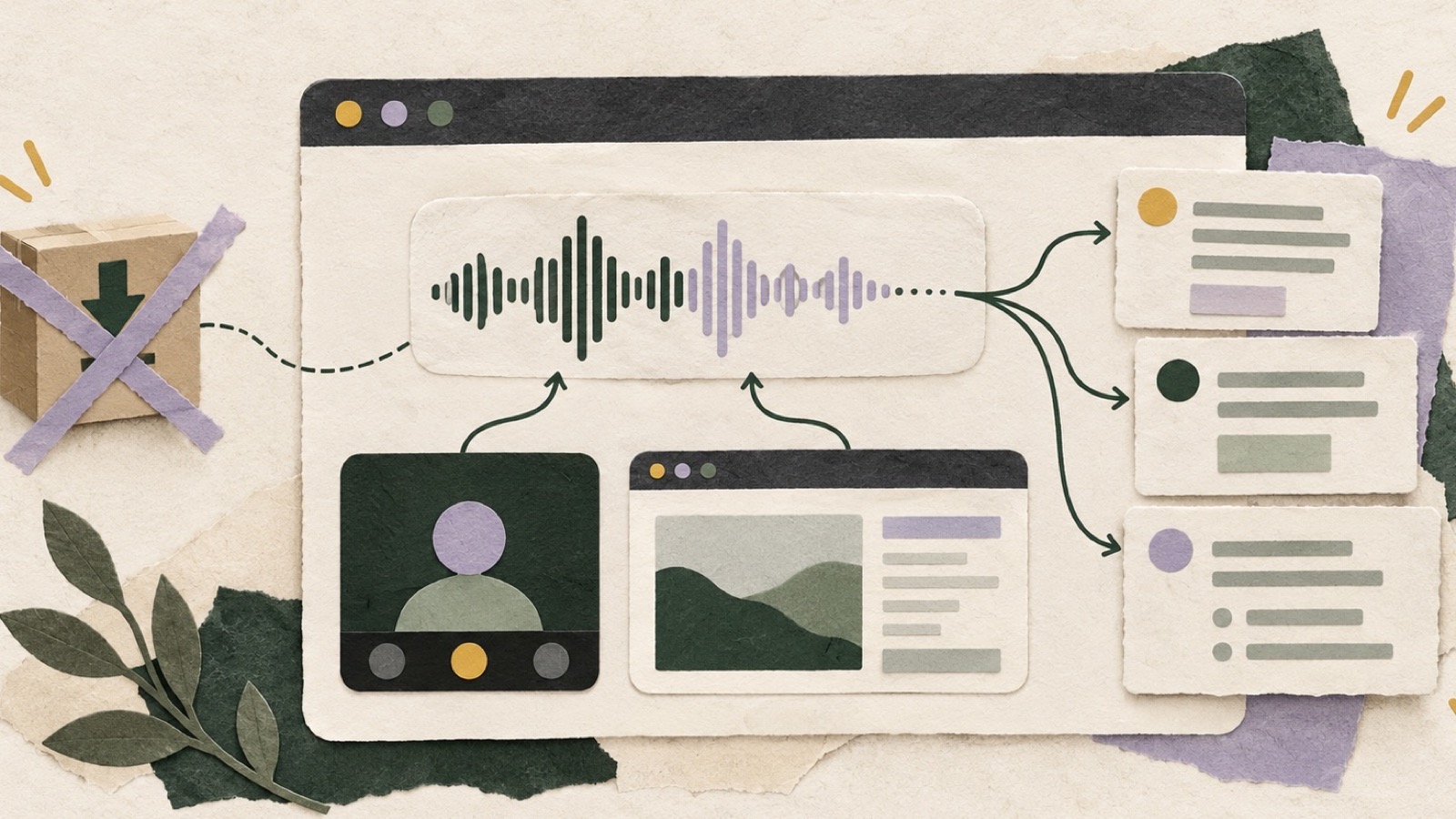
SleekMeeting publishes this comparison and is one of the products discussed. Product and pricing facts were checked against official vendor sources on October 19, 2026. Prices are shown in USD before tax unless stated otherwise.
Key takeaways
- No installation is not the same as no bot: cloud notetakers need no local software but appear as meeting participants.
- SleekMeeting is the direct-browser option in this list, but it requires manual tab or screen-audio sharing and cannot attend automatically.
- Google Meet with Gemini is the cleanest native choice for eligible Google Workspace users who stay inside Meet.
- Cloud-bot products usually offer stronger automation, storage, playback, and team workflows than a manual browser session.
What is the best browser-based AI meeting assistant with no installation?
Choose SleekMeeting first when you need no local installation and no extra meeting participant: it provides live contextual help or structured notes from audio the user shares through a desktop browser. Choose Fireflies for integration-heavy cloud-bot workflows, MeetGeek for automated documentation, Otter for a transcript workspace, Read AI for metrics, and Google Meet with Gemini for eligible Meet-only organizations.
If automatic attendance matters more than participant visibility, a cloud bot may be easier to operate. If no participant may join and no app may be installed, SleekMeeting is the most direct cross-platform workflow in this comparison.
No installation versus no bot: the two-by-two
| Capture type | No local installation? | No meeting bot? | Typical tradeoff |
|---|---|---|---|
| Cloud meeting participant | Yes | No | Automatic and platform-integrated, but visible and subject to admission/policy controls |
| Built-in meeting-platform feature | Yes | Yes | Low setup, but tied to one platform and eligible account editions |
| Direct browser audio sharing | Yes | Yes | Manual start and source selection; compatibility depends on shareable audio |
| Extension or desktop capture | No | Usually yes | Broader device integration, but installation and endpoint permission are required |
This guide focuses on the first three rows. For installed no-bot routes, see Best AI Meeting Assistants Without Bots.
Six no-install meeting assistants compared
| Product/mode | No-install capture | Visible participant? | Primary output | Important limitation |
|---|---|---|---|---|
| Fireflies cloud bot | Calendar/invite-based cloud capture | Yes | Transcript, summaries, search, analytics, integrations | Storage and AI credits vary by plan |
| MeetGeek bot mode | Cloud bot joins supported meetings | Yes | Notes, highlights, templates, insights, workflows | Hours, retention, and features vary by plan |
| Otter web/Notetaker | Web app or cloud Notetaker | Notetaker: yes; direct web recording: no | Live transcript, summary, playback, chat, collaboration | Free and paid duration/usage/import limits apply |
| Read AI | Cloud bot for supported meetings | Yes | Notes, live metrics, reports, coaching, search | Free plan caps meetings; playback is plan-dependent |
| SleekMeeting | Direct browser tab or screen sharing with audio | No | Live answers in Assist or structured output in Note | Manual; no native apps; modes cannot run together |
| Google Meet with Gemini | Built into Meet for eligible editions | No separate bot | “Take notes for me” notes and recap in Google Docs/Workspace | Google Meet only; eligible Workspace subscription and admin settings required |
Six browser-based options and when they fit
Fireflies.ai cloud bot: best for integrations and automation
Fireflies can join supported Zoom, Teams, and Google Meet calls from the cloud without local installation. It creates transcripts, summaries, searchable records, conversation intelligence, and automated workflows into many tools. The bot appears as a participant. Fireflies also offers installed extension, desktop, and mobile capture routes, but those fall outside the strict no-install path. Plan storage and AI credits must be evaluated together.
MeetGeek bot mode: best for standardized meeting documentation
MeetGeek's cloud assistant can attend meetings, generate notes and highlights, apply templates, and pass output into connected workflows. Its official site documents a Free plan with three recording hours per month, while paid plans expand hours, retention, analytics, and integrations. It also offers installed alternatives; use bot mode when endpoint installation is the actual blocker.
Otter web and Notetaker: best for a searchable conversation workspace
Otter can record in the web application or send its Notetaker to supported meetings, then provides live transcription, speaker identification, summaries, AI Chat, playback, search, and collaboration. Notetaker is visible; direct web recording does not create a guest but requires the user to run capture. Otter also has native apps, although none are required for the web/cloud routes.
Read AI: best for live metrics and reports
Read's cloud assistant adds notes, engagement and speaker signals, coaching, reports, recommendations, and search. Its Free plan covers five meetings per month, and playback is available on specified plans. This suits organizations that use meeting measurement, not just summaries. The visible participant and analytics policy should be acceptable to attendees and administrators.
SleekMeeting: best for direct browser live help without a bot
SleekMeeting does not install software or join the participant list. The user chooses a desktop browser tab or screen and includes audio. Assist provides a live transcript, contextual answers, one optional PDF/DOC/DOCX file up to 10 MB, and optional manually triggered screenshot analysis. Note produces notes, decisions, actions, a summary, and an editable email draft, with completed Note exports to Notion and Google Docs/Drive.
The modes are mutually exclusive, and Note does not send email. Manual sharing means no unattended capture and no universal meeting-app compatibility. There are no native apps. Pricing is currently $5/hour Assist and $4/hour Note with a $10 minimum, volume discounts, rolling 30-day expiry, and reservation rules. This is best for selected calls, not a broad automatic archive.
Google Meet with Gemini: best for eligible Google Workspace teams
Google's “Take notes for me” feature is built into Google Meet for eligible Workspace editions. Hosts and administrators control availability; participants are notified when note-taking is active, and the resulting notes are organized in Google Workspace. It avoids an extra vendor and participant. The tradeoff is platform lock-in: it is not a Zoom or Teams assistant, and availability depends on subscription, language, account, and administrator settings documented by Google.
When each no-install route works best
Cloud bots for automatic coverage
A cloud participant is the most practical route when calendars drive the workflow and the organization wants meetings captured without relying on someone to press start. It can work even if the attendee uses a locked-down device. The bot may wait in a lobby, be rejected by an external host, or violate a client's participant policy. Test organizer changes, recurring links, and calls owned outside the company.
Built-in platform notes for a standardized environment
Google Meet with Gemini reduces vendor and setup overhead for eligible Workspace teams already committed to Meet. Administration, participant notice, and document destinations stay in the Google environment. The limitation is equally clear: it does not follow users to Zoom or Teams. A multi-platform organization may prefer one independent assistant even when the native feature is smoother.
Direct browser sharing for deliberate, selected calls
A user-started browser capture can avoid both installation and a guest participant. It works best when meetings run in shareable browser tabs, the user is present, and only selected calls need assistance. It is a poor fit for unattended capture, native meeting clients whose audio is unavailable to the browser, or teams that expect every scheduled call to appear automatically.
Security and IT questions for browser-based tools
- Authentication: supported identity providers, multifactor authentication, session controls, and account recovery.
- Audio path: what the browser captures, where it is streamed, whether raw audio is stored, and when it is deleted.
- Participant notice: bot naming, admission, built-in notifications, recording disclaimers, and manual disclosure.
- Data destinations: recordings, transcripts, notes, reports, Google Docs, CRMs, and third-party automation.
- Administration: retention, sharing, export, integration approval, audit logs, and offboarding.
- Browser policy: supported browsers, pop-up or media permissions, screen-sharing restrictions, and managed-profile compatibility.
No-download products can still introduce a substantial cloud service into the data flow. Endpoint convenience should not skip the vendor review required for meeting content.
A practical compatibility test
- Run one Zoom, one Teams, and one Google Meet session using the browser route you expect employees to use.
- Include a waiting room, external organizer, headphones, and a screen share with audio.
- Confirm whether a participant joins and exactly what notice other attendees receive.
- Test a meeting longer than the free-plan or per-conversation limit.
- Compare transcript, decisions, action owners, dates, playback, and search.
- Send the result to the real document, CRM, or collaboration destination.
- Delete the test content and verify that links, integrations, and retained copies behave as documented.
Common no-install buying mistakes
Assuming no bot: Fireflies, MeetGeek, Otter Notetaker, and Read AI can require no local installation precisely because a cloud participant performs capture. Assuming universal compatibility: direct browser capture depends on the browser, operating system, meeting client, and audio source. Ignoring the paid plan: free meeting counts, duration, retention, playback, storage, analytics, and administration may be below the deployment requirement.
How to choose a no-install workflow
- Automatic attendance matters: choose a cloud-bot route from Fireflies, MeetGeek, Otter, or Read AI and accept participant visibility.
- No participant and no installation: compare SleekMeeting's manual browser share with built-in Google Meet notes if Meet is your only platform.
- Analytics matter: Read AI and plan-dependent Fireflies or MeetGeek functions deserve closer review.
- Searchable collaboration matters: Otter's transcript workspace is more complete than a focused session output.
- Endpoint policy may change later: favor a vendor with both cloud and installed routes if flexibility is important.
To understand how live assistance differs from conventional capture and summaries, read AI Meeting Assistant vs AI Notetaker. For platform coverage, see the tl;dv alternatives guide.
Frequently asked questions
Can an AI meeting assistant work entirely in a browser?
Yes. A cloud bot can be scheduled from a browser, a meeting platform can provide built-in notes, or a web app can capture audio the user shares. These methods have different participant visibility and automation.
Does no installation mean no meeting bot?
No. Cloud bots require no local software but join as participants. SleekMeeting's direct browser sharing and Google Meet's built-in Gemini notes avoid a separate participant.
Which browser-based assistant works without a bot?
SleekMeeting is a cross-workflow direct-browser option when the relevant audio can be shared. Google Meet with Gemini is built into eligible Meet accounts. Otter web recording can also be user-run without its Notetaker, within documented limits.
Do browser-based assistants process everything locally?
Not necessarily. Browser interfaces can stream audio and data to cloud backends. Review each vendor's security and privacy documentation rather than assuming “browser-based” means local processing.
What if my browser cannot share meeting audio?
Use a supported cloud bot, built-in platform feature, or approved desktop/extension capture route. Test the exact operating system, browser, meeting client, and administrator policy before purchase.
Try direct browser capture with no download
Use one 10-minute Assist and one 10-minute Note trial when you have no paid balance to verify that your real meeting audio can be shared.
Try SleekMeeting freeOfficial sources and methodology
Capture routes, features, and published limits were checked October 19, 2026.
Fireflies pricing · MeetGeek · Otter pricing · Read AI pricing · Google Meet Gemini notes help