Managed-device guide
AI Meeting Assistants for Locked-Down Work Laptops: What Actually Works?
SleekMeeting can be viable when installing software is blocked but the managed browser allows media sharing and the meeting policy permits it. That is not the same as “no IT approval needed.” Native platform features, cloud bots and approved apps may be more appropriate when the organization needs automatic attendance, audit controls or system-wide audio.
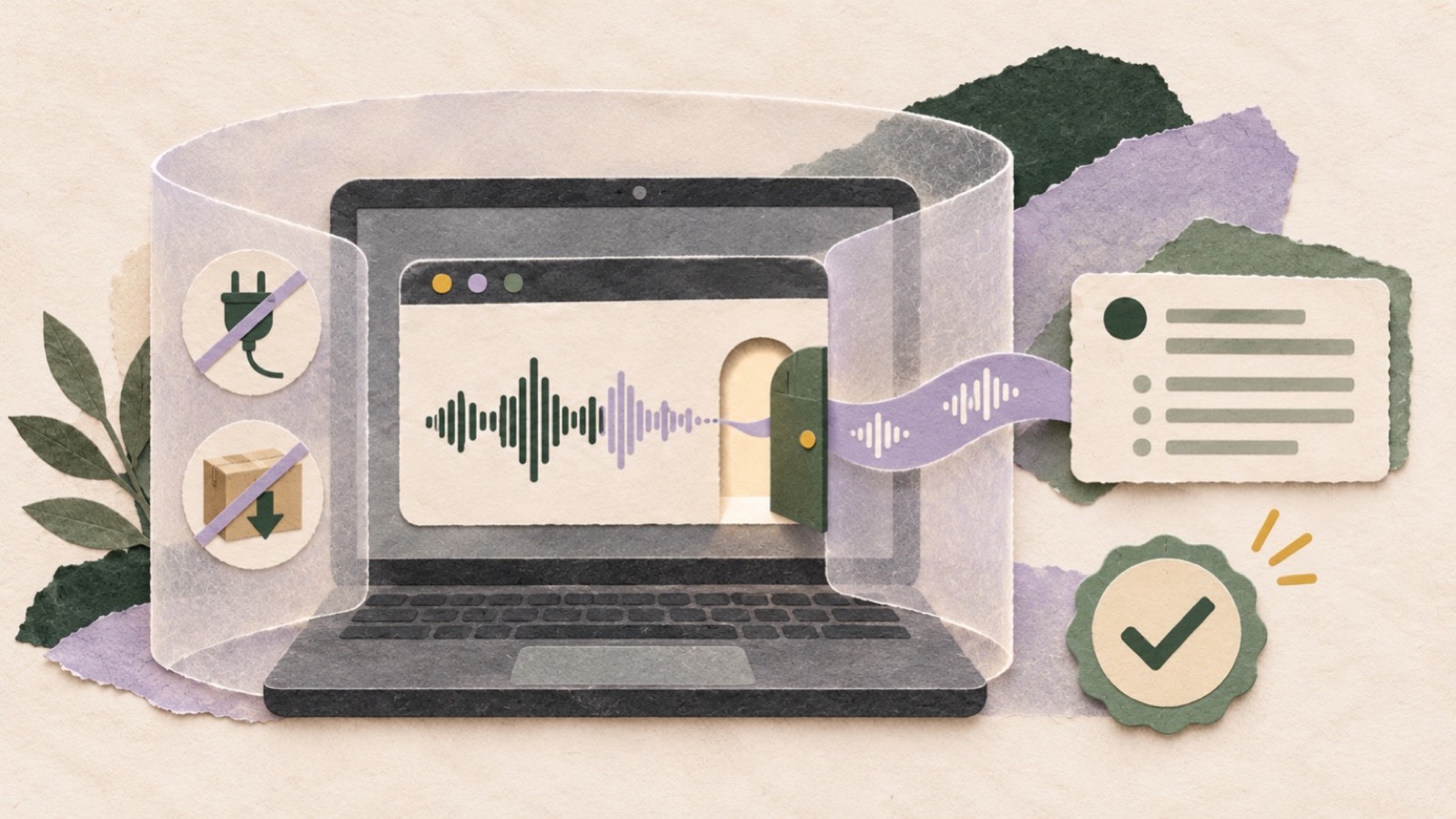
SleekMeeting publishes this guide and is one of the products discussed. Product facts were checked against official sources on November 10, 2026.
Key takeaways
- No installation solves only the endpoint problem; it does not override browser or workplace policy.
- Cloud bots avoid local installation but add participant visibility and admission questions.
- Direct browser capture can work without admin rights if media sharing is permitted and the meeting runs in a supported web client.
- Document the exact browser, OS, web client, permissions and data path before rollout.
What works on a locked-down laptop?
Start with an approved native feature if your company already uses Google Meet, Teams or Zoom. If bots and extensions are blocked but the browser permits tab or screen audio sharing, test a direct-browser product such as SleekMeeting. If browser media sharing is also restricted, ask IT for an approved desktop, extension or platform-native route. There is no responsible promise that a browser tool bypasses policy.
Capture routes and their tradeoffs
| Route | Local install | Participant | What can block it | Best use |
|---|---|---|---|---|
| Native platform assistant | Usually no separate install | No external bot | License, tenant and admin eligibility | Standardized organization |
| Cloud bot | No local install | Visible guest | Host, lobby and bot policy | Automatic archives |
| Extension/desktop app | Yes | Usually no guest | Admin rights, allowlist and endpoint security | System-wide capture |
| SleekMeeting browser route | No app or extension | No guest | Browser media policy, shareable audio, meeting web client | Selected calls with live help or notes |
Run a policy-safe test
- Ask whether browser display capture and microphone access are allowed in the managed profile.
- Use a non-sensitive meeting in Google Meet, Teams Web or Zoom Web.
- Share only the meeting tab with audio; use headphones and verify remote and local speech.
- Stop sharing and check that the session stops advancing.
- Review vendor retention, account access, exports and deletion with security or IT.
The tested browser path is not local processing. It streams media to the product backend, so a cloud-service review is still necessary.
Choose by organization need
- Strong admin controls: native platform or approved enterprise assistant.
- No guest bots: direct browser sharing or native features, with consent.
- No installation but automatic attendance: cloud bot, if the host and policy permit it.
- One selected call with live context: SleekAssist can be tested without an extension.
For the audio mechanics, read how browser assistants capture audio. For blocked participants, read the bot policy guide.
Frequently asked questions
Can I use SleekMeeting without IT approval?
Do not promise that. It depends on your employer's browser, data and meeting policies.
Does a cloud bot need admin rights on my laptop?
Usually not locally, but it may need calendar, tenant or meeting admission permissions.
Does no extension mean no data leaves the device?
No. Browser capture can stream data to a backend.
Can a locked laptop share a tab?
Some managed profiles can; others disable it. Test or ask IT.
Test the permitted browser path
Use a low-risk call and document every permission before choosing a meeting assistant for managed devices.
Try SleekMeeting freeOfficial sources and methodology
Browser and platform behavior was checked November 10, 2026.
MDN display capture · Google Meet notes · Teams bot protection