Product guide
How to use SleekMeeting for live answers, notes, and follow-ups
SleekMeeting is built for people who want to stay sharper during calls and spend less time cleaning up afterward. It combines SleekAssist for real-time AI answers, SleekNote for structured meeting notes, multilingual live transcription, follow-up email drafts, session history, and document exports.
Best workflow
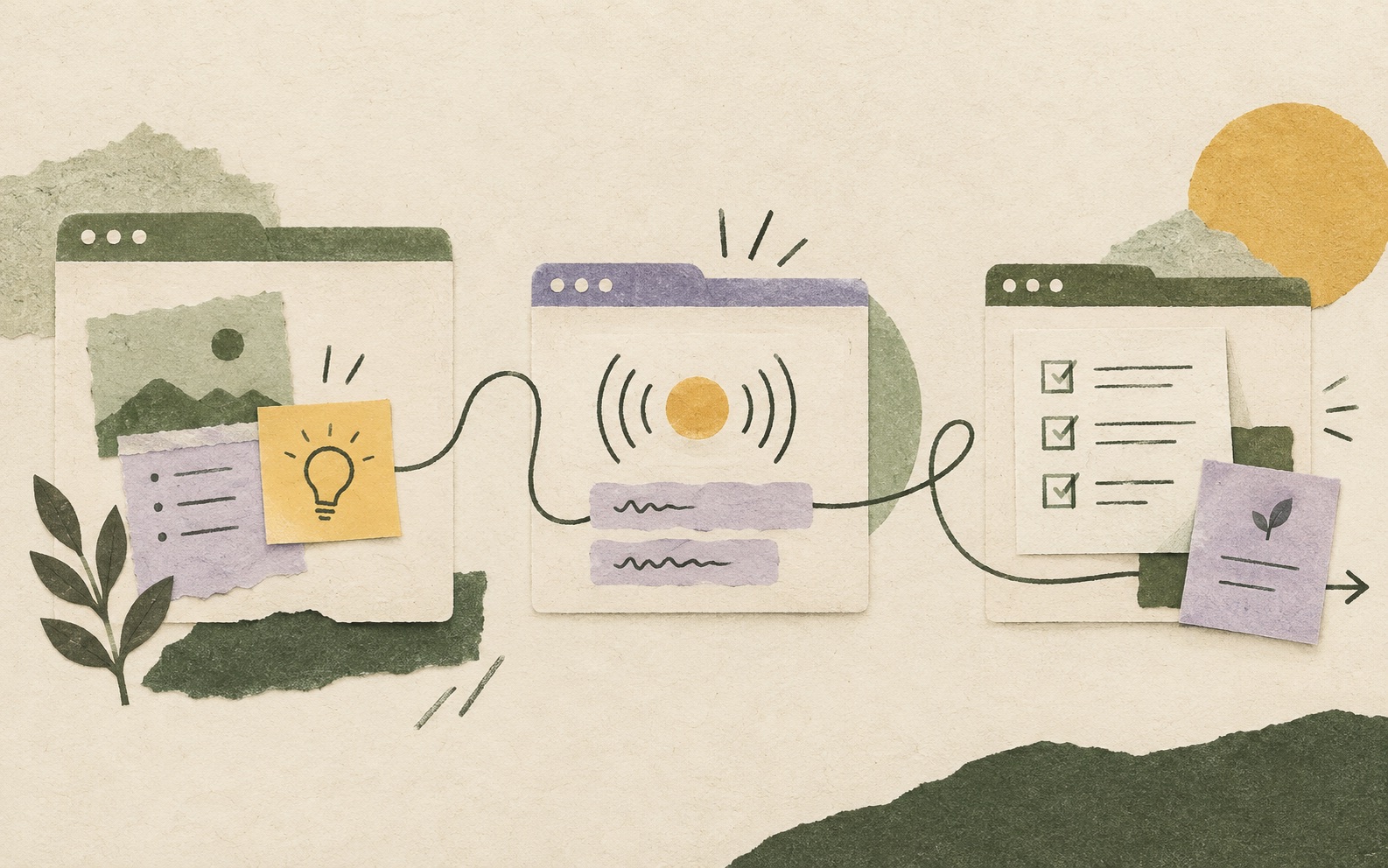
- Before the call: choose SleekAssist, SleekNote, or both, then add any supporting context you want the AI to use.
- During the call: let SleekAssist use the live transcript and optional screen context to help with important questions.
- After the call: use SleekNote to create summaries, action items, full transcripts, follow-up drafts, exports, and a reusable meeting record.
What SleekMeeting helps you do
Most meeting tools only solve one side of the problem. They either help you capture notes, or they help you during the live conversation. SleekMeeting is designed to cover both moments: the pressure of answering well during the call, and the admin work that usually starts after the call ends.
- Answer confidently in real time: use SleekAssist when a prospect, client, interviewer, or colleague asks something you need to handle clearly.
- Capture the conversation: use real-time transcription to keep track of what was said across Zoom, Google Meet, Microsoft Teams, and browser-based calls.
- Handle multilingual meetings: keep a usable transcript even when colleagues switch between languages, such as French and English in the same conversation.
- Leave with usable notes: use SleekNote to generate summaries, action items, and structured notes.
- Follow up faster: turn meeting context into a polished follow-up email instead of starting from a blank page.
- Keep a record: review session history later when you need transcripts, notes, AI responses, or key details.
1. Pick the workflow that matches your call
Before you start, decide what kind of help you need. SleekMeeting gives you two main workflows.
SleekAssist: live AI help during the call
Use SleekAssist when the conversation itself is high-stakes. It is useful for sales demos, discovery calls, client meetings, interviews, investor conversations, product questions, pricing questions, and technical objections.
SleekNote: clean notes after the call
Use SleekNote when your main goal is documentation. SleekNote turns the full transcript into structured meeting notes, summaries, action items, and follow-up drafts at a lower hourly price than live SleekAssist support.
SleekNote for routine meetings
SleekNote is also useful for routine, low-attention, or information-heavy meetings where you need a reliable record but do not need live AI answers. Join the meeting, let SleekMeeting transcribe the conversation, and review the notes and transcript afterward.
Use both for important meetings
For important calls, the best workflow is often both: SleekAssist helps you during the conversation, and SleekNote turns the meeting into clear output afterward.
2. Start a session before the meeting begins
- Open SleekMeeting in your browser.
- Start a new session.
- Choose SleekAssist, SleekNote, or the workflow you need for the call.
- Confirm microphone and meeting audio access.
- Join your Zoom, Google Meet, Microsoft Teams, or browser-based meeting.
Starting before the conversation gives SleekMeeting enough context to build a useful transcript, understand what is happening, and generate better AI meeting notes when the call ends.
If your workplace or region has meeting recording or transcription rules, follow them before starting any transcript-based workflow. SleekMeeting is private to your browser session, but consent and disclosure requirements are still your responsibility.
3. Use SleekAssist without breaking the conversation
SleekAssist is useful when you need help in the moment. Instead of pausing the call to search notes, ask a teammate, or guess, SleekMeeting uses the live transcript and optional screen context to suggest relevant answers while the meeting is still moving.
- Sales calls: handle pricing questions, objections, and product details with more confidence.
- Client calls: answer process questions and keep the conversation organized.
- Founder calls: stay sharper during demos, investor conversations, and partner meetings.
- Interviews: organize answers and respond more clearly under pressure.
4. Turn the call into structured notes
After the meeting, SleekNote turns the transcript into practical output. Instead of manually rewriting a call, you get a clear summary, key discussion points, action items, and a follow-up email draft.
This is especially helpful if you are a consultant, freelancer, sales rep, founder, recruiter, student, or busy professional who has back-to-back calls and does not want to spend the rest of the day writing notes. It is also useful for meetings where you mainly need documentation: SleekMeeting can create the transcript and notes while you stay present enough to participate.
Multilingual transcription helps when people switch languages in the same meeting. If one colleague speaks French, another responds in English, and the discussion moves back and forth, SleekMeeting can still preserve the conversation for review.
5. Export notes where you already work
Meeting notes are only useful if you can find them later. SleekMeeting supports export to Notion and Google Drive, so your summaries, action items, and follow-up details can live where you already organize work.
Use Notion if you keep client notes, research, projects, or personal operating docs there. Use Google Drive if you prefer meeting-note files that are easy to share, archive, and revisit.
6. Use session history before the next call
Session history stores past meetings, transcripts, AI answers, notes, and action items. Before your next call, review the previous session to remember what was discussed, what you promised, and what still needs a decision.
This is where SleekMeeting becomes more than a live assistant. It becomes a private memory layer for your important conversations.
A simple workflow for your next meeting
- Start SleekMeeting before the call begins.
- Use SleekAssist when you need help answering live questions.
- Let SleekMeeting transcribe the conversation.
- Generate SleekNote meeting notes when the call ends.
- Review the action items and follow-up email draft.
- Export the notes to Notion or Google Drive if you want them in your workspace.
- Use session history to prepare for the next conversation.
The best way to use SleekMeeting is simple: use SleekAssist when you need live help, use lower-cost SleekNote when you need clean documentation, and use both when the meeting is important enough to deserve real-time support and a professional follow-up.
Start a free session